Features
Payroll from timesheets, at the rate that applied on the day
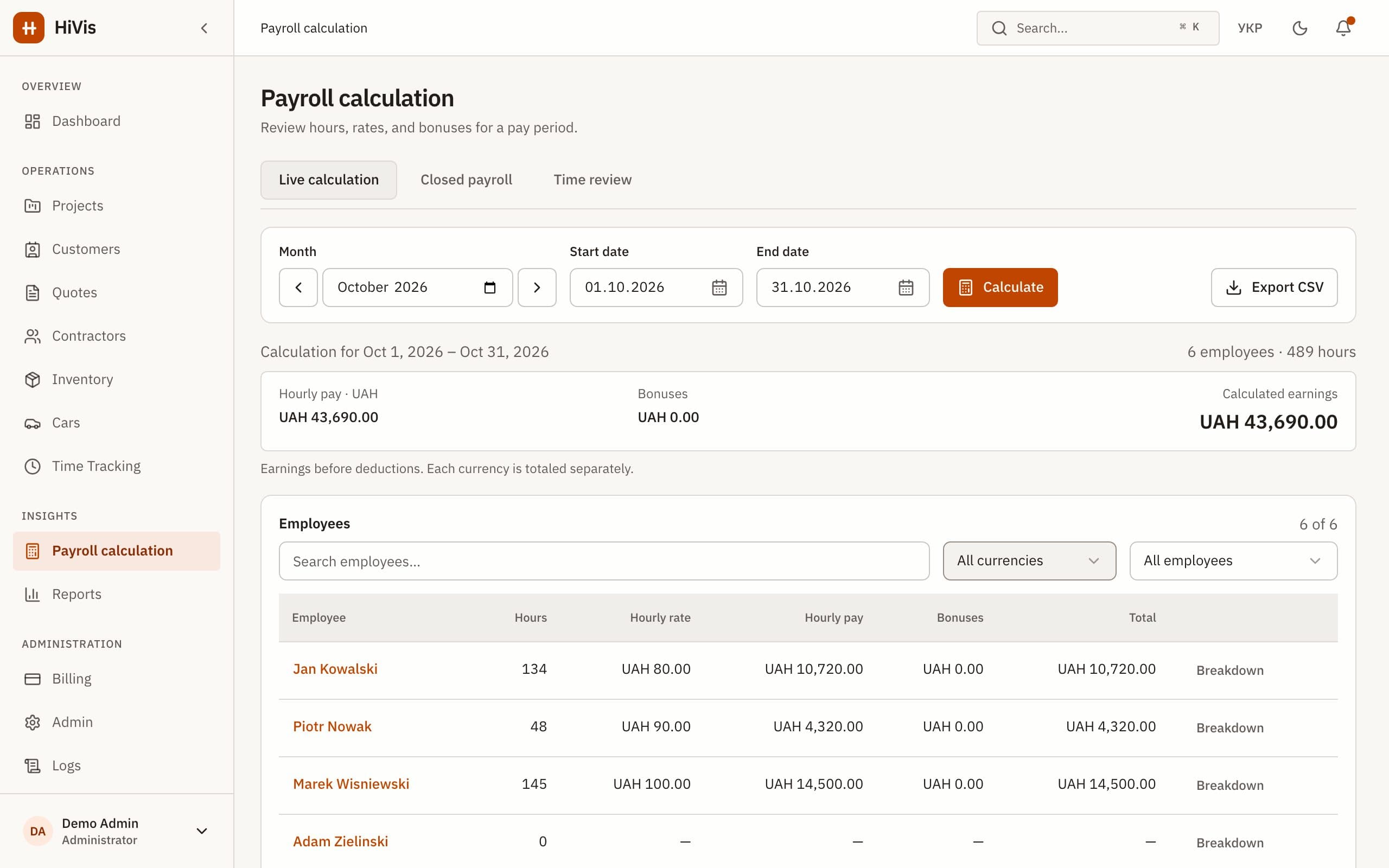
HiVis works out what each person earned from their hours, the hourly rate that applied on each date and any bonuses. You pick the dates, check the totals, export a CSV for whoever pays wages, and close the period so its numbers can’t change later.
Hourly rates with an effective date
Each person has an hourly rate that starts on a date. When someone gets a raise, you add the new rate from the day it applies. Work before that date keeps the old rate, so a raise never changes what earlier work was worth.
- Bonuses have a date and count in the period that date falls in.
- Missing rates are flagged: hours without a rate mark the total as incomplete instead of counting as zero. A zero rate is a real rate, not a missing one.
- Currencies are totaled separately and never converted.
From hours to a closed pay period
Pick the period
Choose a month or any date range, for everyone or for one person. HiVis shows each person’s hours, hourly earnings, bonuses and total.
Fill the gaps
Add any missing rates and get the period’s hours approved. A period closes only when every hour is approved and has a rate, and it can’t overlap another closed period.
Export and close
Download the CSV, then close the period. HiVis stores a snapshot of names, rates, hours, bonuses and totals, and locks the period’s time entries.
Compensation for crew members’ own vehicles
If a crew member uses their own vehicle for work, record them as its owner and add a depreciation rate per km that applies from a start date. Each work trip is recorded with its date, distance and purpose, and optionally a project, then submitted and approved. Approved trips appear in payroll as a separate vehicle depreciation subtotal for each currency, and draft or submitted trips keep the period from closing. The rate covers depreciation from distance only, not fuel, repairs or insurance.
Corrections after a period is closed
A closed period stays as it was closed. If something was wrong, add a correction in a later open period that refers back to the closed one. The original snapshot and its CSV export don’t change, so you can always see what the period said at closing and what changed after.
What HiVis doesn’t do
- No tax, deductions or payslips.
- No bank payments. HiVis calculates pay; you pay wages the way you do today.
- Not a payroll provider or accounting system, and no accounting integration: you get a CSV export.
- No salaried pay: payroll covers hourly rates, dated bonuses and compensation for crew members’ own vehicles.
Questions and answers
See your crews, hours and costs in one place
Book a 30-minute demo or start a 30-day trial. We set up your workspace and help move your data.